Share a map
Save a copy of the map
You'll start by opening the map of recreation facilities in Red Deer, Alberta. Then, you'll save your own copy of the map to use in the tutorial.
- Go to the Red Deer Recreation Facilities map.
This is the map that your colleague created, which you now want to share with the GIS manager for approval.

The map shows the locations of Red Deer recreation facilities styled by facility type: indoor, multipurpose, and so on. The Legend pane shows what each color represents. By clicking the locations on the map, you can see pop-ups with information about the facilities, such as the facility name and a list of amenities. This map is a great start to building a more comprehensive web map for the upcoming sporting event.
Note:
You can learn more about pop-ups in the tutorial Configure pop-ups.
- On the Map Viewer ribbon, click Sign In. Sign in using your ArcGIS organizational account credentials.
Note:
If you don't have an organizational account, see options for software access.
For the purpose of this tutorial, you'll make a copy of the map to share.
- On the Contents (dark) toolbar, click Save and open and choose Save as.

The Save map window appears.
- In the Save map window, change Summary to This map shows recreation facilities by type in Red Deer, Alberta.

- Click Save.
A copy of the map is saved to your ArcGIS account.
Create a group
Your map of recreation facilities in Red Deer is now saved as an item in My Content. Currently, only you can access and view the map, but you want the GIS manager—and only her—to review it and give you approval to feature it on the Red Deer website. The best way to do this is by sharing the map privately using a group.
- At the top of the screen, click the options button.

- In the options menu, choose Groups.
The Groups page appears in ArcGIS Online.
- Click Create group.

- In the Create a group window, under Group overview, for Name, type Red Deer Recreation Facilities.
- For Summary, type A group for approving the recreation facilities web map.
You only intend for this group to be used by people you invite to the group directly, so you won't add search tags.
- For Who can view this group?, choose Only group members.

- Click Save.
The group details page appears. The group has been created, but it doesn't have any content or members yet. You'll start by sharing your map with the group.
- Click the Content tab.

- Click Add items to group.

The Add items to group window appears.
- Find your Red Deer Recreation Facilities web map and click the box next to the map name to select it.

- Click Add items.
Your map has been shared with the group.
Share the map privately
Next, you'll invite the GIS manager to the group so that she can review your map. You also decide to invite your colleague to the group in case he has feedback.
Note:
For the purpose of this tutorial, you'll invite any two members of your organization who have an ArcGIS Online organizational account. If your organization has no other members, or you don't want to add members to your group, you may skip to the next section.
- Click the Members tab.

- Click Invite members.

- In the Invite members window, find two members you want to add to the group and check the boxes next to their names.
- At the bottom of the window, confirm Add organization members without requiring confirmation is checked.
- Click Add members to group.
The users you added are now members of your group. You'll give one member, representing the GIS manager, a manager role
- On the Members page, check the box for the member you want to make the GIS manager. Click Update member's group role.

- In the Update group role window, click Manager. Click Save.
You now have a user in the group with a Group Manager role.
Edit the item page
The GIS manager has reviewed your map. While the map looks good, she recommends you update the map's item page before sharing the map publicly.
Every item in ArcGIS Online has an item page that contains a variety of information, actions, options, and settings. The item page helps other people find your content, as well as understand its purpose, the data it contains, and whether there are restrictions on its use.
The item page for your web map is still a bit sparse. For example, you're missing an in-depth description of the map and have not credited the source of the data. To make your content stand out as compelling and authoritative, it's important that the item page be as complete and informative as possible. The Item information bar assists with this. It shows your progress toward providing complete item information and also indicates the most important improvement you can make.
Tip:
It's also helpful to view an example of an item that has been documented with complete and compelling item details.
- On the Red Deer Recreation Facilities group page, click the Content tab. Click the name of your map.

The item page for your web map opens. It already includes some information; the summary and tags were filled in when you saved the map. Additional information was generated automatically. For example, the Layers and Basemap sections are filled out with the layers used in the map.
Next, you'll look at the Item information bar to see what improvements you can make to the item page.
- Under Item information, for Top improvement,
click Add a description.

The Description section becomes editable.
- Enter the following text:
This map shows recreation facilities in Red Deer, Alberta, Canada. The map was created using a modified version of a CSV data file downloaded from the City of Red Deer Open Data Catalogue. The map and pop-ups reference information from the City of Red Deer website, the City of Red Deer Open Data Catalogue, and a Tourism Red Deer brochure. The facilities are categorized as indoor, multipurpose, outdoor, or outdoor gym, and are shown using a different color for each category. Pop-ups include information about each facility, such as the name, the address, and a list of amenities. The map also features Esri's Topographic basemap. This map was created for instructional purposes only and should not be used as an authoritative resource.
Tip:
If you copy and paste the text, it may be formatted. You can remove the formatting by highlighting the text and clicking the Remove Format button on the toolbar.
- Click Save.
The Item information bar updates to reflect the information you added. Its next recommendation is to add terms of use to let users know how they can use your map.
- Under Item information, for Top improvement, click Add terms of use.
- Enter the following text:
This map was created for instructional purposes using a modified version of a CSV data file downloaded from the City of Red Deer Open Data Catalogue and using information from the City of Red Deer website and a Tourism Red Deer brochure.
- Click Save.
The Item information bar indicates that you've completed enough details, but it's also a good idea to give credit to the data providers.
- For Acknowledgments, click Edit.
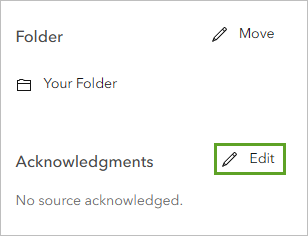
- Type (or copy and paste) Esri, City of Red Deer, Tourism Red Deer and click Save:
Tip:
If you're signed in with an organizational account and your organization has set up content categories, you can click Edit next to Categories and select up to 20 categories to help others find your map.
Add a custom thumbnail
A thumbnail image is created by default when you add an item to ArcGIS Online. An appealing thumbnail image helps your item stand out in galleries and search results.
The thumbnail image that was automatically generated for your map is fine, but your colleague thinks you should include a custom image that highlights your map. In fact, he created one for you to use, and he added the image file as an item in ArcGIS Online so that you can access it.
- Go to the Red Deer Facilities Map Thumbnail item page.
- Click Download.

- Save the image to a location on your computer.
- Return to the item page for your map.
Tip:
If you closed the item page, you can return to it by clicking the Content tab and clicking the name of the Red Deer Recreation Facilities web map.
- Above the default thumbnail, click the Edit thumbnail button.

- In the Create thumbnail window, click Browse. Browse to and double-click the thumbnail image you downloaded.
- Click Save.
The new thumbnail is uploaded.

Share the map publicly
The item page is now complete. You're now ready to share it with everyone.
- On the Red Deer Recreation Facilities item page, click Share.

- In the Share window, select Everyone (public).
- Click Save.
Now anyone can find and view your map. When you're ready, you can feature it on the City of Red Deer website by embedding the map in the site. In the time leading up to the sporting event, you can collect new data to add to your map—for example, add a layer showing Red Deer accommodations and another layer showing restaurants.
In this tutorial, you shared your map of recreation facilities in Red Deer with the public. What's next?
You can explore ArcGIS Online on your own and discover what else is possible. A few ideas are listed below. Some require an organizational account with publishing or administrative privileges and may consume credits.
- Make your profile more descriptive to establish your authority in your area of expertise.
- Configure more advanced pop-ups.
- Create a web app with your map, such as a story map with additional text, videos, images, and web pages.
You can find more tutorials in the tutorial gallery.
