

Perform spatial regression
First, you'll model home prices using a spatial regression technique called geographically weighted regression (GWR). Like other regression techniques, GWR identifies relationships between a target variable (in this case, home prices) and several explanatory variables (in this case, property characteristics such as home size, number of floors, and so on). These relationships can then be used to make predictions.
Unlike generalized linear regression (GLR), GWR accounts for spatial variations in the data. It does this by creating separate regression equations for each feature in the dataset based on the variables in that feature's neighbors. Spatial regression techniques like GWR are useful when the relationship between variables is not consistent across the study area or if the target variable changes in proximity to certain geographic features.
Explore the data
First, you'll download an ArcGIS Pro project package containing home sales data in King County, Washington. Then, you'll explore the data to determine which variables are appropriate to use when performing GWR.
Note:
If you completed the tutorial Predict home prices with linear regression, you can use the project from that tutorial instead of downloading the project package for this tutorial.
- Download the Home Valuation 2 project package.
- Browse to the downloaded file and double-click Home_Valuation_2.ppkx to open the project in ArcGIS Pro. If necessary, sign in using your licensed ArcGIS account.
Note:
If you don't have access to ArcGIS Pro or an ArcGIS organizational account, see options for software access.
The project contains a map of King County, Washington, with the results of a previous analysis that used GLR.

On the map, the points represent the difference between the GLR model's predicted home sales prices and actual sales prices that occurred between May 2014 and May 2015. Green points are those where the predicted prices are significantly lower than the actual prices, while purple points are those where they are significantly higher.
The darkest green and purple points tend to be clustered together, rather than distributed evenly throughout the dataset. For instance, the model seems to have consistently under-predicted home prices near downtown Seattle and over-predicted prices in the suburbs south of the city. These patterns suggest that geography has a big influence on prices, so a spatial regression technique like GWR might create a better prediction model than GLR.
- In the Contents pane, uncheck Valuation_GLR_2. Collapse it to hide its legend.

Three layers (not including the basemap) remain on the map. The first, King County Housing Data, contains actual home sales prices between May 2014 and May 2015, as well as property characteristics about each house such as its size, number of floors, and so on. You'll use this dataset to train the GWR model.
The other layers, Microsoft and Seattle, were used during the previous GLR analysis as explanatory distance features, which caused the GLR model to adjust predicted prices based on a house's proximity to these features. While adding the explanatory distance features improved the model, it didn't account for all of the spatial variation in the data.
Explanatory distance features aren't necessary for GWR. GWR creates local equations at every feature based on its neighbors, so it automatically captures distance relationships if and where they are important.
- Turn off the Microsoft and Seattle layers.
Model prices with spatial regression
GWR, like other regression methods, requires a dependent variable, which is the variable you want to predict (in this case, price), and one or more explanatory variables, which are the variables used to make the prediction.
The previous GLR analysis used three explanatory variables: the property's living space in square feet, the property's grade (cubed to make its relationship to price more linear), and the property's distance from the waterfront. You'll run GWR using the same variables.
Note:
To learn more about these variables and how they were chosen, see Predict home prices with linear regression.
- On the ribbon, click the Analysis tab. In the Geoprocessing group, click Tools.

- In the Geoprocessing pane, search for GWR. In the list of results, click Geographically Weighted Regression (GWR).
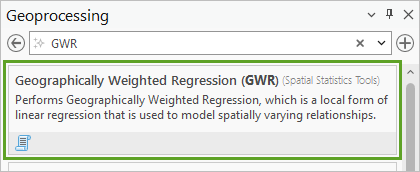
- For Input Features, choose King County Housing Data. For Dependent Variable, choose Price.
- For Explanatory Variable(s), check the boxes for Square Feet (Living), Waterfront, and Grade_Cubed.
These are the three variables used in the GLR analysis.

- For Output Features, delete the text and type Valuation_GWR_1.
Because GWR calibrates local equations for each feature based on its neighbors, it needs to know how to determine neighboring features. The tool can find two possible neighborhood types, one based on the number of neighbors (so that each feature has a similar number), and one based on a distance band (so that each feature has a fixed distance around it where other features are considered neighboring).
For now, you'll use the number of neighbors type and see how it affects your results.
- For Neighborhood type, choose Number of neighbors.
You'll also set the neighborhood selection method, which specifies the size of a neighborhood. You can either set a size manually, either with a specific value or an interval between a minimum or maximum size, or you can use the golden search option, which causes the tool to automatically estimate an optimal neighborhood size after testing various sizes. You don't have a specific size in mind, so you'll use the golden search method.
- For Neighborhood Selection Method, choose Golden search.
Lastly, the tool has two types of local weighting schemes, which specify the kernel type used to define how each feature is related to other features. In the Gaussian weighting scheme, all features (even those outside of a feature's neighborhood) influence the feature, but features that are farther away have exponentially lower influence. In the Bisquare weighting scheme, only features inside the neighborhood have influence, with closer features having more influence than farther ones.
For now, you'll use the Gaussian weighting scheme. Later, you'll run the tool again with different parameters and compare the results.
- Expand Additional Options. Change Local Weighting Scheme to Gaussian.

- Click Run.
The tool fails. You'll investigate why.
- At the bottom of the Geoprocessing pane, click View Details.

According to the tool details window, the tool was unable to estimate at least one local model due to multicollinearity, also known as data redundancy.
GWR cannot be performed if any of the explanatory variables exhibit local multicollinearity, meaning the values are the same for broad regions of the study area. In this case, the explanatory variable causing the problem is likely the Waterfront variable. This variable only has three values: 0 (meaning a home is not on the waterfront), 1 (meaning a home is within a certain distance of a waterfront), and 2 (meaning a home is on the waterfront). Not only are there only a few values, but most homes in the dataset have a value of 0. Because this variable represents distance, and GWR automatically accounts for distance, this variable isn't necessary anyway.
It's also possible the Grade_Cubed variable might be creating problems. There are only 12 types of grades, and houses in the same neighborhood may be of a similar quality and have a similar grade. First, you'll try removing the Waterfront variable to see if it fixes the error.
- Close the tool details window. In the Geoprocessing pane, for Explanatory Variable(s), uncheck Waterfront.
- Leave the other parameters unchanged and click Run.
This time, the tool runs for about a minute or longer. It completes successfully, but with warnings. The results are added to the map.

Compared to the results of the GLR analysis, there are still underpredictions near Seattle and along waterfronts, but in the southern inland suburbs the model predicted prices with relative accuracy.
Refine the model
The GWR tool ran with warnings. First, you'll investigate those warnings. Then, you'll try running the tool after adjusting some of the tool parameters, particularly those involving neighborhood type and local weighting scheme.
- At the bottom of the Geoprocessing pane, click View Details. If necessary, in the tool details window, click the Messages tab.
The warning states that the final model didn't have the lowest Akaike's Information Criterion (AICc) value encountered in the golden search results. AICc is a relative value that reflects information lost due to the modeling process. The smaller the AICc, the better the model. The warning is explaining that the golden search method, which automatically determines the number of neighbors, used a number that wasn't fully optimal.
Under Analysis Details, the Number of Neighbors row has a value of 31. This number resulted in an AdjR2 (adjusted R2) value of 0.8741 and an AICc value of 558535.

Note:
You may need to scroll down the window to see these values.
R2 (also known as R2 or R-Squared) is the coefficient of determination, which measures how much of the variation in the data is explained by the relationship between the dependent and explanatory variables. An R2 closer to 1 indicates a stronger relationship, which is desired.
The previous GLR analysis had an adjusted R2 of 0.6911 and an AICc of 576857, so the GWR model, which has a higher R2 and lower AICc, is an improvement over it.
- Scroll up to the Golden Search Results section.
This section includes a table showing the AICc for various numbers of neighbors the tool tried. Most numbers resulted in a higher AICc than 31 neighbors, but 30 neighbors has a slightly lower AICc (558449 compared to 558535). Using 30 neighbors should also yield a very slightly higher adjusted R2.
- Close the tool details window.
Next, you'll try running the tool with a different local weighting scheme and see if your results have a higher R2 and lower AICc.
- In the Geoprocessing pane, change Local Weighting Scheme to Bisquare.

- Leave all other parameters, including the Output Features parameter, unchanged. Click Run.
The tool fails. The error (you may check it if you like) is the same one as before, regarding multicollinearity. It seems using the Bisquare weighting scheme is ineffective when using the Grade_Cubed variable. Rather than remove the variable, which will likely make the model less accurate than when you ran it using the Gaussian weighting scheme, you'll change the neighborhood type, which could affect whether the tool runs.
- Change Neighborhood Type to Distance band. Leave all other parameters unchanged and click Run.
The tool runs. After a minute or more, it completes successfully. Because you did not change the name of the output feature (in the Output Features parameter), the results overwrite your previous result layer, rather than creating a new one.
- At the bottom of the Geoprocessing pane, click View Details.
Like before, you receive a warning that the final model did not use the neighborhood size with the lowest AICc. There is also a warning that at least one local regression (neighborhood) had very limited variation after applying the local weighting scheme, which might lead to unreliable results.
The tool used neighborhoods with a distance band of 30,154 feet. This neighborhood size resulted in an adjusted R2 of 0.8196, which is lower than the previous model, and an AICc of 565540, which is higher. Overall, this neighborhood type and weighting scheme were less effective than the previous.
You'll run GWR one final time using the original parameters, but manually set the number of neighbors to 30, which is the number that produced the best results when you first ran the tool.
- Close the tool details window. In the Geoprocessing pane, set Neighborhood Type to Number of neighbors and Local Weighting Scheme to Gaussian.
- For Neighborhood Selection Method, choose User defined. For Number of Neighbors, type 30.

- Leave the other parameters unchanged and click Run.
Because you specified an exact number of neighbors rather than using the golden search method, the tool runs more quickly than before.
- Click View Details.
With 30 neighbors, GWR produced an adjusted R2 value of 0.8747 and an AICc value of 558449. These are the best values you've produced with GWR and a substantial improvement over GLR.
- Close the tool details window. In the Contents pane, collapse the Valuation_GWR_1 layer to hide its legend.
- On the Quick Access Toolbar, click the Save Project button.

You've performed spatial regression using GWR to model home sales prices with greater accuracy than with GLR. Though your model is a significant improvement, the distribution of dark green points on the map indicates it is still underpredicting prices near waterfronts and downtown Seattle, so you have room for improvement.
Perform random forest regression
A model created using a more robust machine learning method might produce more accurate predictions. Machine learning involves algorithms learning from data to predict unknown values. By some definitions, GLR and GWR are considered machine learning techniques, as they find a statistical trend line through the data and use that line to predict values. However, this single line influences all of the model's decisions, which in some instances can overfit the model to the training data. Overfitting means a model is good at predicting the known values but not at predicting unknown ones.
By contrast, random forest regression creates a series of decision trees (or a "forest" of decision trees), each from a random subset of the data, that are aggregated to produce more robust predictions. Because the final predictions are not based on a single tree, the result avoids overfitting. You'll use this type of regression for your next model.
Model prices with random forests
To perform random forest regression, you'll use forest-based classification and regression (FBCR).
- In the Geoprocessing pane, click the Back button.

- In the search bar, type Forest-based and Boosted Classification and Regression. In the list of results, click Forest-based and Boosted Classification and Regression.

This tool includes the option to use either a forest-based model or a gradient boosted model. For this tutorial, you'll be using the forest-based model, which is selected by default.
- For Input Training Features, choose King County Housing Data. For Variable to Predict, choose Price.

Next, you'll choose the explanatory variables. For GLR and GWR, you used only a small number of variables, all of which had strong linear relationships with price and avoided multicollinearity. However, because FBCR is based on many decision trees rather than a linear trend line, it is not affected by multicollinearity and does not require explanatory variables to have a linear relationship with the variable being predicted. Consequently, it can model relationships using a large number of explanatory variables, with fewer possibilities for overfitting. You'll add more variables than you used before.
- For Explanatory Training Variables, click the Add Many button.

- Check the following variables and click Add:
- Bedrooms
- Bathrooms
- Square Feet (Living)
- Square Feet (Lot)
- Floors
- Waterfront
- Condition
- Grade
- Square Feet (Above)
- Square Feet (Basement)
- Year Built
You must also indicate whether each explanatory variable is categorical or not. Categorical variables are those where the values are not inherently better or worse than others. When a variable has an order so that higher values or lower values are better, it isn't categorical.
The tool will automatically detect string (text) fields as categorical, but numeric variables can also be categorical. In your data, the Floors field is categorical, because a three-story house is not inherently better than a two-story or one-story house.
- Next to Floors, check the Categorical box.

FBCR can automatically calculate distance to features as an explanatory variable, similar to the GLR tool, so you'll add the same explanatory distance features used for the GLR analysis.
- For Explanatory Training Distance Features, choose Microsoft and Seattle.

Next, you'll set the output parameters. The FBCR tool not only creates output features, similar to the other tools you've used, but also creates a table that tracks the importance of each variable on the results.
- Expand Additional Outputs. For Output Trained Features, type Valuation_FBCR_1, and for Output Variable Important Table, type Importance_FBCR.

- Expand Advanced Model Options.
FBCR is based on randomly sampled decision trees, and you can set the number of trees, the depth of each tree, and the number of randomly sampled variables. A larger number of trees improves model stability, but also increases the time it takes for the tool to run. Larger tree depth improves predictions for existing data but can result in overfitting and weaken the model's ability to predict locations not used to train the model. Reducing the number of randomly sampled variables can improve model generalizability but also reduce overall model performance on the training data.
The Optimize Parameters checkbox will cause the tool to automatically determine the best values to use for each of these parameters. However, it will also significantly increase the time it takes for the tool to complete. (The time can be as high as several hours.)
For the purposes of this tutorial, optimized parameters have already been determined for you.
Note:
To determine the optimized parameters, the optimization method used was Grid Search, which is the most comprehensive but also takes the longest to complete. The optimize target was Root Mean Square Error, which optimizes for predicting unknown values. When performing FBCR on your own data, it's recommended to check Optimize Parameters, even if doings so will cause the analysis to take a long time.
- Under Advanced Model Options, set the following parameters:
- For Number of Trees, type 250.
- For Minimum Leaf Size, type 5.
- For Maximum Tree Depth, type 34.
- For Data Available per Tree (%), type 100.
- For Number of Randomly Sampled Variables, type 8.
- Confirm Optimize Parameters is not checked.

Lastly, you'll set the validation options. Because the random forests in FBCR are based on random subsets of the data, output models can have varying accuracy. To gauge the model's stability, or the impact of the random subsets of the training data on the results, you can run the model multiple times and check the distribution of the resulting R2 values. These multiple runs are called validation runs.
Running a higher number of validation runs is generally desirable, but will cause the tool to run for longer. For this tutorial, you'll perform 20 validation runs.
- Expand Validation Options. For Number of Runs for Validation, type 20.
You'll also create an output validation table, which will chart the R2 values of the multiple runs.
- Check Calculate Uncertainty. For Output Validation Table, type Validation_R2.

You've set the tool parameters.
Tip:
Because there are so many parameters, and the tool takes several minutes to run, you may want to double-check to ensure you've set all the parameters correctly before running the tool.
- Click Run.
Note:
The tool may take 15 minutes or more to run.
When the tool finishes, a new layer is added to the map.

Investigate the results
Now that the tool has finished, you'll investigate the results. You'll start with the chart showing the distribution of R2 values from the 20 validation runs.
- In the Contents pane, scroll down to the Standalone Tables section. Double-click the Validation R2 chart.

The chart appears. It shows the number of validation runs organized by R2, as well as the mean and median R2.
Note:
Because FBCR uses random subsets of the data and random selections of explanatory variables for each tree, your results will differ from the example images.

In the example image, the mean R2 is 0.867; yours may be slightly higher or lower. The range of values is relatively stable, with the lowest validation run having an R2 value of 0.847 and the highest having a value of 0.888.
Next, you'll investigate the importance of each variable on the results.
- Close the Validation R2 chart. In the Contents pane, in the Standalone Tables section, double-click the Distribution of Variable Importance chart.
This chart lists each explanatory variable in order of importance. In FBCR, importance refers to the number of times a decision tree splits based on a variable across the entire forest model. Variables with higher numbers caused more tree splits, meaning the variable had a higher impact on the model results.

The most important variables are Grade and Square Feet (Living), the same variables you used when you performed GWR. Distance to Seattle and Microsoft are the next most important variables, with other variables being of relatively low importance.
Sometimes, you can improve a model by removing explanatory variables with low importance so that they aren't randomly selected for trees at the expense of more important variables. The Condition, Bedrooms, and Floors variables are the least important, so they are good candidates for removal. In this case, removing them does not make much difference on the results, so you'll leave the model as is.
- Close the Distribution of Variable Importance chart and the Chart Properties pane.
You'll also investigate the tool details.
- At the bottom of the Geoprocessing pane, click View Details.
Note:
If you accidentally closed the Geoprocessing pane, you can still access the tool details window. On the ribbon, on the Analysis tab, in the Geoprocessing group, click History. In the History pane, right-click Forest-based and Boosted Classification and Regression and choose View Details.
- If necessary, in the tool details window, click the Messages tab and scroll up to the Model Characteristics section.
This section summarizes the model parameters, most of which you set. If you had allowed the tool to optimize its parameters, you would see the parameters it chose.
- Scroll down to the Training Data: Regression Diagnostics section.
The R2 value in this section is around 0.977 (your values will slightly differ), indicating that the FBCR model predicts the training data (the data used to define the model) with very high accuracy. Under the Validation Data: Regression Diagnostics section, the R2 value is around 0.869, suggesting that the model can predict validation data (data that was excluded from training the model) with high accuracy too.

The validation data R2 value indicates how well the model performs if used to predict unknown values. This value is similar to the R2 value for the GWR model, which was 0.874.
- Scroll up to the Model Out of Bag Errors section.
This section indicates the impact of adding more trees to the model.

The mean squared error (MSE) and percentage of the variation explained are better with 250 trees compared to 125, but the difference is not large. If the difference was larger, you might consider running the model with additional trees.
- Close the tool details window.
Lastly, you'll investigate a chart of prediction intervals.
- In the Contents pane, for the Valuation_FBCR_1 layer, double-click the Prediction Interval chart.

This chart shows the uncertainty bounds of the predictions. The dark blue line is the model's final predicted price. The light blue line is the 95th percentile (P95), indicating that 95 percent of predictions were lower than this value. The light green line is the 5th percentile (P05), indicating all but 5 percent of predictions were higher than this value.
Together, these lines indicate the uncertainty of the prediction. The actual price can be predicted to fall anywhere between the P95 and P05 values based on small changes to the training data. If the range between these values is larger, there is more uncertainty.

Uncertainty bounds rapidly widen for home prices higher than $1,000,000. This trend is likely due to the small sample size for such expensive homes. As prices go up, there are even fewer samples, so uncertainty increases.
- Close the Prediction Interval chart and the Chart Properties pane.
Map model uncertainty
It's important to understand your model's uncertainty. Though the Prediction Interval chart indicated that uncertainty increases as prices go up, you also want to visualize this uncertainty on the map. Are there locations where uncertainty is higher?
To better understand uncertainty, you'll calculate a field that quantifies uncertainty by combining the P95 and P05 values with the predicted value (P50). Then, you'll perform hot spot analysis on the results to see where there are statistically significant clusters of higher and lower uncertainty.
- In the Geoprocessing pane, click the Back button. Search for Calculate Field and open the Calculate Field (Data Management Tools) tool.
This tool uses an equation to calculate a new field for a layer. To define uncertainty, you'll use the following equation:
Uncertainty = (P95 – P5)/P50This equation divides the range of predicted values (P95 though P05) by the model's final predicted value, P50. When the range is higher, the uncertainty will be higher too.
- For Input Table, choose Valuation_FBCR_1. For Field Name, type Uncertainty.
The default field type is text, but this field will contain numbers, so you'll change the field type.
- For Field Type, choose Double (64-bit floating point).
You can create the expression by clicking the appropriate fields. For convenience, you'll be provided with the expression.
- Under Expression, for Uncertainty =, type (or copy and paste) the following expression:
(!Q_HIGH! - !Q_LOW!) / !PREDICTED!

- Click Run.
The tool runs. The Uncertainty field is calculated and added to the Valuation_FBCR_1 layer.
Tip:
To view the calculated field, right-click Valuation_FBCR_1 and choose Attribute Table. Scroll to end of the table.
Next, you'll perform hot spot analysis on the field. Hot spot analysis statistically determines areas where high and low values cluster together.
- In the Geoprocessing pane, click the Back button. Search for and open the Optimized Hot Spot Analysis tool.
- Set the following parameters:
- For Input Features, choose Valuation_FBCR_1.
- For Output Features, delete the text and type Uncertainty_Hot_Spots.
- For Analysis Field, choose Uncertainty.

- Click Run.
The tool runs. When it finishes, a new layer is added to the map.
- In the Contents pane, uncheck and collapse Valuation_FBCR_1. Uncheck Valuation_GWR_1 and King County Housing Data.
On the map, red areas are hot spots (where uncertainty is statistically high compared to the rest of the data) and blue areas are cold spots (where uncertainty is statistically low).

Uncertainty is high in the suburbs south of Seattle, but low in the eastern areas of the county. Random changes in the training data will have a greater influence where uncertainty is high, so results for hot spot areas may experience greater fluctuation when the model is run again.
- In the Contents pane, uncheck and collapse Uncertainty_Hot_Spots. Turn on King County Housing Data.
- Save the project.
In this tutorial, you used GWR (spatial regression) and the machine learning-based FBCR (random forest regression) to model home sales prices. These models significantly improved on a previous model created using GLR. You also explored the uncertainty of your results by mapping hot spots.
So far, you've created models that predict home sales prices and compared them against actual prices. To apply these models to predict the prices of homes that have not yet been sold, try the tutorial Compare the predictions of three models. For the other tutorials in this series, see Predict home prices with regression analysis and machine learning.
You can find more tutorials in the tutorial gallery.
