Compare band combinations
First, you'll take an initial look at the burn scar using Landsat 8 imagery. After acquainting yourself with the study area, you'll change the band combination of the imagery to better see the burned areas. Then, you'll create a custom combination to emphasize burn scars.
Open the project
Before you begin your analysis, you'll download and open a project package containing the raw data for your assignment.
- Download the
Montana Fires Project Package. If prompted, download the file to a location you can easily remember, such as your Documents folder.
Project packages contain all maps, data, folders, and toolboxes for a project.
Note:
Depending on your web browser, you may have been prompted to choose the file's location before you began the download. Most browsers download to your computer's Downloads folder by default, and you can then move the package to a location of your choice.
Based on your settings, the downloaded project package might open on its own in ArcGIS Pro. Otherwise, you'll open it now.
- Start ArcGIS Pro. If prompted, sign in using your licensed ArcGIS organizational account.
Note:
If you don't have access to ArcGIS Pro or an ArcGIS organizational account, see options for software access.
When you open ArcGIS Pro, you're given the option to create a new project or open an existing one. If you've created a project before, you'll see a list of recent projects.
- Click Open another project (if you've used ArcGIS Pro before) or Open an existing project (if you haven't).
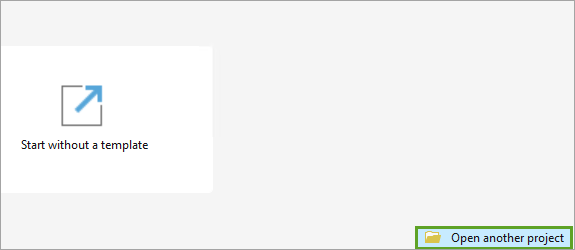
Next, you'll search for the project you downloaded.
- In the Open Project window, browse to the location where you downloaded the Montana_Fires project package. Double-click the package to open it.
The project opens with two layers in the Contents pane.
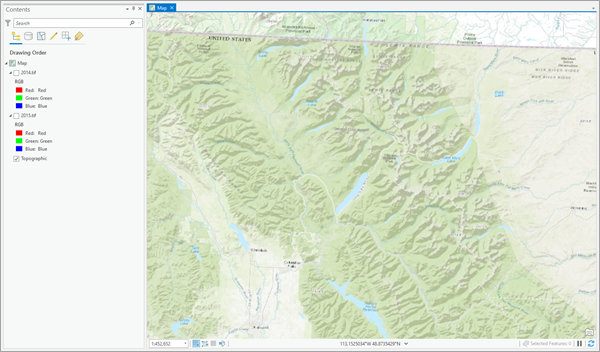
The layers, 2014.tif and 2015.tif, are imagery layers and are turned off. The map is centered around Glacier National Park in Montana, which comprises more than 1 million acres. The World Topographic Map is the basemap used for this project.
Enhance the imagery
Now that you've accessed the project data, you'll look at and enhance the imagery. The layers, 2014.tif and 2015.tif, are two Landsat 8 imagery layers, clipped to a study area around two particular wildfires: the Thompson Fire and the Reynolds Creek Fire. Both images were captured in August of different years.
- In the Contents pane, check the box next to the 2014.tif layer to turn it on. Right-click the layer and click Zoom To Layer.
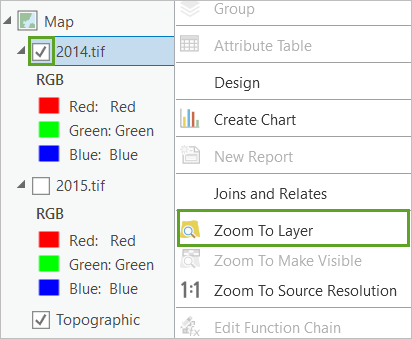
The map zooms to the image location.
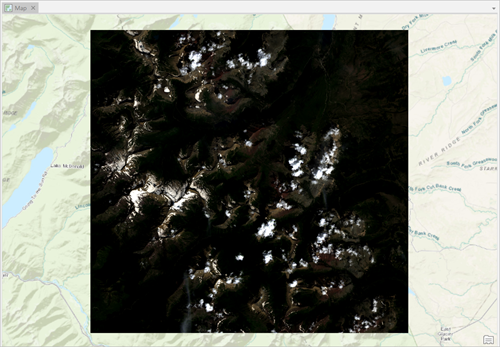
The image is dark and difficult to see. You'll adjust the brightness, contrast, and gamma to better see the image. Brightness determines whether an image as a whole is displayed lighter or darker. Contrast adjusts the difference between the darkest and lightest colors. Gamma determines how the middle values of an image (from dark to light grays) will be distributed. Increasing all of three parameters will improve the visibility of the image.
Note:
To better understand gamma, the human eye does not perceive levels of brightness the same way a digital camera does. Gamma encoding redistributes tones across the image to make them better match the human eye's perception. In particular, a higher gamma value improves the ability for the human eye to differentiate between dark tones. With a lower gamma value, darker areas in an image can appear uniformly dark and the features they contain can be hard to distinguish. A higher gamma value introduces more variations in the dark tones and makes the features appearing in the dark areas easier to distinguish.
- If necessary, in the Contents pane, click the 2014.tif layer to select it.
- On the ribbon, click the Raster Layer tab. In the Enhancement group, increase Layer Brightness to 20, Layer Contrast to 25, and Layer Gamma to 1.8. Press Enter.

The changes immediately update on the image.
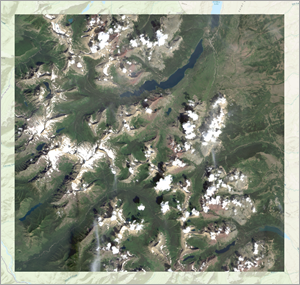
You can now see the environment in more detail. The mountainous terrain is marked by valleys and lakes. Some of the peaks are snowcapped while others are obscured by cloud cover. Since this image was taken in August, the mountains may have glaciers or permanent snow. The terrain also appears to have ample vegetation. The type of vegetation and the slope of the mountains affect fire, particularly the speed at which it spreads. This is what the area looked like in 2014, before the Reynolds Creek and Thompson fires. Next, you'll review the 2015 imagery.
- In the Contents pane, uncheck the 2014.tif layer to turn it off. Check the 2015.tif layer to turn it on.
The 2015.tif imagery is visible.
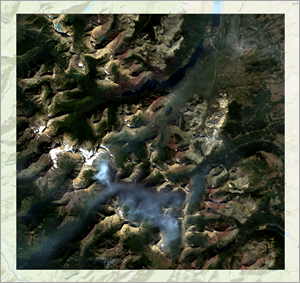
The default appearance of the 2015 image is clearer than the 2014 image was, but it could still use some brightness, contrast, and gamma correction.
- In the Contents pane, click the 2015.tif layer to select it.
- On the Raster Layer tab, in the Enhancement group, increase Layer Brightness to 10, Layer Contrast to 15, and Layer Gamma to 1.5.
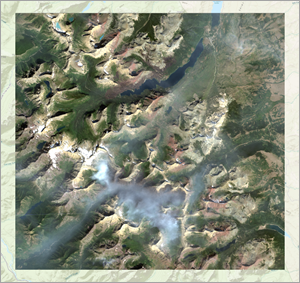
The 2015 imagery has two distinct differences from the 2014 imagery. First, a large gray cloud covers the central-southern portion of the image. This cloud is actually smoke from the Thompson Fire, which was still burning when this image was taken.
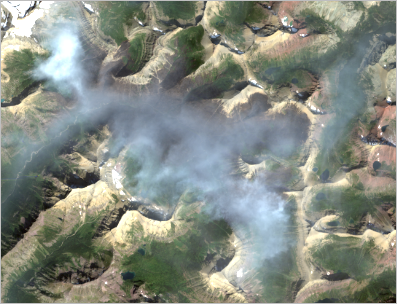
Secondly, to the upper left of the lake in the central-northern part of the image is a long reddish streak. This is the burn scar of the Reynolds Creek Fire, which had stopped burning by the time this image was taken.
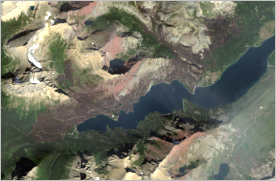
While both fires are visible, their exact boundaries are unclear. Next, you'll experiment with various band combinations of the imagery to find one that best emphasizes the burn scars.
View various band combinations
Landsat imagery measures ranges of wavelengths of the electromagnetic spectrum, including some that are invisible to the human eye. These ranges are called spectral bands. The bands are described in the following table:
| Number | Name | What this band shows best |
|---|---|---|
1 | Coastal Aerosol | Shallow water, fine dust particles |
2 | Blue | Deep water, atmosphere |
3 | Green | Vegetation |
4 | Red | Human-made objects, soil, vegetation |
5 | Near Infrared | Shorelines, vegetation |
6 | Shortwave Infrared 1 | Cloud penetration, soil and vegetation moisture |
7 | Shortwave Infrared 2 | Improved cloud penetration, soil and vegetation moisture |
8 | Panchromatic | Black-and-white imagery, crisper detail |
9 | Cirrus | Cirrus clouds |
10 | Thermal Infrared 1 | Thermal mapping, estimated soil moisture |
11 | Thermal Infrared 2 | Improved thermal mapping, estimated soil moisture |
Bands 2, 3, and 4 (Blue, Green, and Red) make up the spectrum of light visible to the human eye. The Natural Color band combination, which your imagery currently uses, combines these three bands to approximate how imagery would look to a person. Next, you'll change the band combination to emphasize the fires and better see their boundaries.
- In the Contents pane, confirm that the 2015.tif layer is selected.
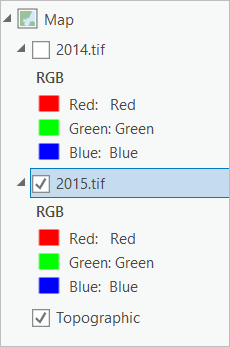
Under the layer name are the bands the image currently uses: Blue, Green, and Red bands that encompass visible light. The Red and Green bands emphasize vegetation, which can be useful for seeing fires because of the contrast between highly vegetated areas untouched by fire and areas where vegetation has been destroyed by fire. Using another band that emphasizes vegetation, such as Near Infrared (band 5), could improve the contrast.
- On the Raster Layer tab, in the Rendering group, click Band Combination and choose Color Infrared.
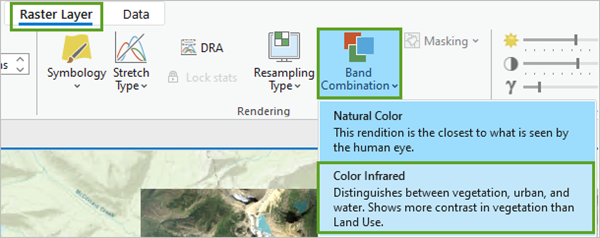
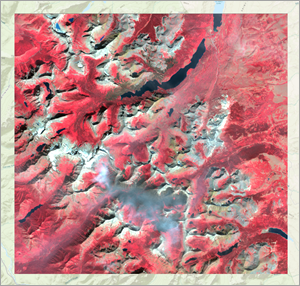
The image changes to show the new band combination.
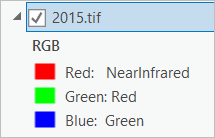
In the Contents pane, the bands beneath the layer name also change, indicating that this image combines Near Infrared, Red, and Green bands (3, 4, and 5). Since the Near Infrared band is normally invisible to the human eye, it is displayed through the Red channel. As a result, the Red and Green bands are displayed through the Green and Blue channels.
Note:
The image resulting from combining three imagery bands and displaying them through the Red, Green, and Blue channels is named an RGB composite. Any band can be used in any of the three RGB composite channels, which is why it's possible to have the Red band displayed through the Green channel. In the legend, the color of the symbol and the first word indicate the composite color (or channel), while the second word indicates the band chosen.
As an imagery analyst, you'll quickly get used to seeing imagery in these unusual color combinations.
On the map, vegetation appears as red. Both fire areas appear as dark brown. Compared to the original image, the fires appear more clearly, especially the Reynolds Creek Fire north of the lake. However, the Thompson Fire is still obscured somewhat by smoke. Next, you'll try a band combination using the Shortwave Infrared bands (6 and 7), which penetrate clouds.
- On the Raster Layer tab, click Band Combination and choose Land/Water Interface.
The bands update and the imagery changes.
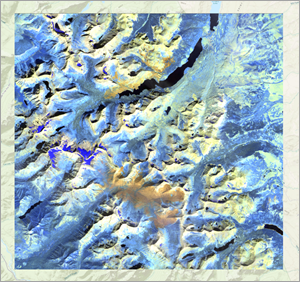
In the Contents pane, the bands beneath the layer change to both Shortwave Infrared bands and the Near Infrared band, meaning this image combines bands 5, 6, and 7. Although the main purpose of this combination is to delineate land and water, it also penetrates haze (or, in this case, smoke). Almost no smoke appears around the Thompson Fire, making its boundaries much clearer. However, the burned areas appear orange while the surrounding mountain slopes appear yellow. This makes the Reynolds Creek Fire, which spreads into the mountains, more difficult to see.
- Click Band Combination again and choose Vegetation Analysis.
The bands update and the imagery changes.
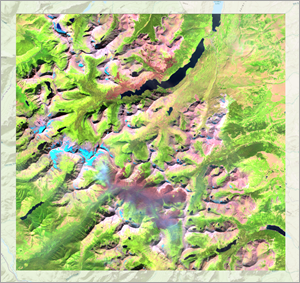
This combination uses the Red, Near Infrared, and Shortwave Infrared 1 bands (4, 5, 6). It thus combines the emphasis of vegetation from the Color Infrared combination with some of the haze penetration of the Land/Water Interface combination. Although some smoke is visible around the Thompson Fire and the Reynolds Creek Fire blends somewhat into the mountain slopes, these issues are less severe than in the previous combinations.
If the haze could be reduced just a little more, this image would probably be the best for digitizing the burn scars. However, none of the remaining default band combinations improves on the three you looked at. To customize the imagery to your needs, you'll create a custom band combination.
Create a custom band combination
So far, you've used preconfigured band combinations. Next, you'll choose your own bands to create a custom band combination that will improve on the Vegetation Analysis band combination by further reducing haze.
- In the Contents pane, locate the 2015.tif layer.
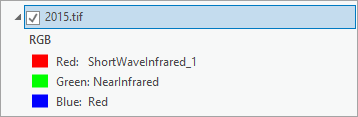
The Vegetation Analysis band combination uses the Shortwave Infrared 1 band to reduce haze and the Near Infrared and Red bands to emphasize vegetation. Switching Shortwave Infrared 1 to Shortwave Infrared 2 would improve the haze (or cloud) penetration.
- Right-click the ShortWaveInfrared_1 band and choose ShortWaveInfrared_2.
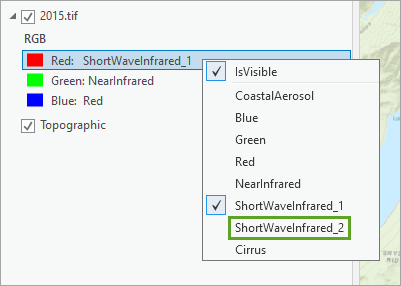
Note:
The Panchromatic band (band 8) and both Thermal Infrared bands (bands 10 and 11) have been removed from the data provided in this tutorial package, which is why they do not appear in the list of bands.
The band automatically changes, as does the image on the map. The difference on the map is subtle, but you will see a slight improvement in the clarity of the burn scar display. Next, you'll replace the Red band with the Blue band.
- Right-click the Blue color and choose Blue.
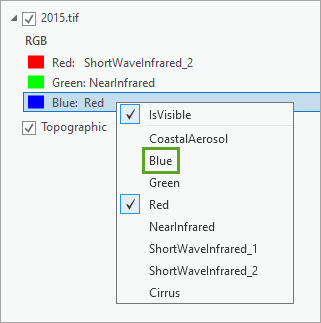
The image on the map changes slightly. Although still visible, the haze has been reduced.
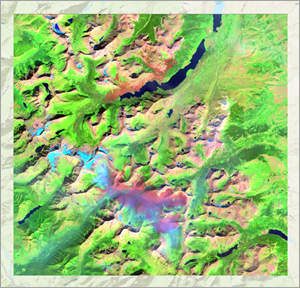
You are now satisfied with the display of the burn scars. To easily access this band combination in the future, you'll save it as one of the default combinations on the Raster Layer tab.
- On the Raster Layer tab, click Band Combination and choose Custom.
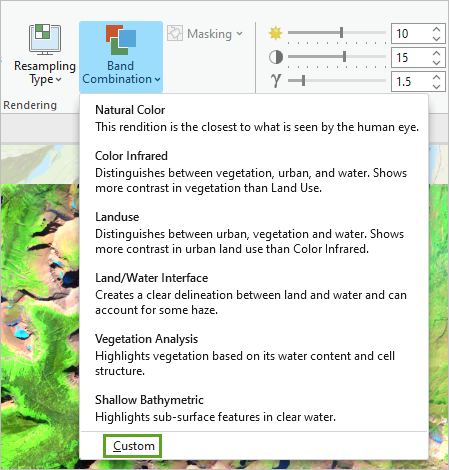
The Custom Band Combination window appears.
- For the Red color, choose ShortWaveInfrared_2. For the Green color, choose NearInfrared. For the Blue color, choose Blue. Name the custom band combination Burn Scar Analysis and click Save.
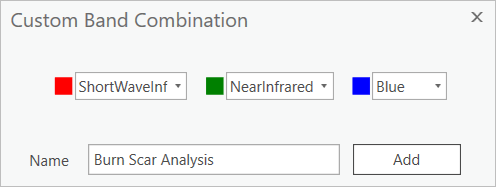
The custom band combination is added to the Band Combination drop-down menu, allowing you to quickly apply it to other imagery (or reapply it to this image if you change the band combination again).
Note:
You can remove custom band combinations from the list only after starting a new session of ArcGIS Pro.
- Save the project by clicking the Save button on the Quick Access Toolbar.
You've displayed imagery of two fires in Glacier National Park, first as a natural color image and then using other band combinations that emphasized the burned areas better. Ultimately, you created a custom band combination specifically meant to highlight burn scars. Although this custom combination is more suitable for deriving exact burn scar boundaries, it still requires some visual interpretation to determine what is burned and what is not. Next, you'll use a mathematical formula called a burn index to calculate burned areas quantitatively, providing an even more exact measure of where the fires raged.
Calculate the burn index
Previously, you looked at the imagery through various spectral band combinations to visually identify burn scars. Next, you'll use an index that identifies burned areas quantitatively. This index is called the Normalized Burn Ratio (NBR), and it mathematically compares the Near Infrared and Shortwave Infrared 2 bands of an image (bands 5 and 7, respectively) to determine burn severity.
You'll apply the NBR to the 2014.tif and 2015.tif imagery, and then you'll compute the difference between the two images to determine the amount of change pre- and postfire. The result will be mathematically computed burn scars.
Calculate the Normalized Burn Ratio
First, you'll calculate the NBR for the 2014 image.
- If necessary, open your Montana Fires project.
- In the Contents pane, select the 2014.tif layer. On the ribbon, click the Imagery tab, and in the Tools group, click Indices.

- In the Indices pane, click NBR.
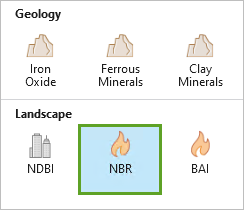
- In the NBR window, for Near Infrared Band Index, choose 5 - Nearinfrared or verify that it is already chosen, and for Shortwave Infrared Band Index, choose 7 - ShortWaveInfrared_2. Click OK.
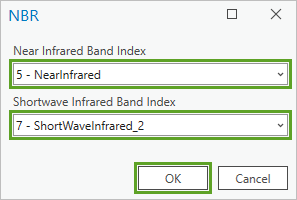
In the Contents pane, the NBR_2014.tif layer appears.

An NBR layer values can vary maximally between -1 and 1, although not all values might be present in a specific layer. Next, you'll now calculate the NBR on the 2015 image.
- In the Contents pane, select the 2015.tif layer. On the ribbon, on the Imagery tab, in the Tools group, click Indices.
- In the Indices pane, click NBR.
- In the NBR window, for Near Infrared Band Index, choose 5 - Nearinfrared or verify that it is already chosen, and for Shortwave Infrared Band Index, choose 7 - ShortWaveInfrared_2. Click OK.
In the Contents pane, the NBR_2015.tif layer appears.
Determine change in NBR
Next, you'll use the Difference tool to calculate the change in NBR between the two images. In doing so, you'll identify the areas whose NBR values have sharply increased between 2014 and 2015. These areas will correspond to the burn scars.
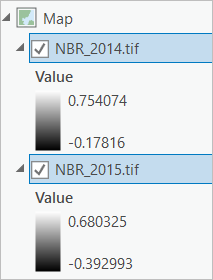
The difference you want to compute is NBR_2014.tif - NBR_2015.tif. The Difference tool takes rasters in the order they are listed in the Contents pane, so you'll move NBR_2014.tif above NBR_2015.tif.
- In the Contents pane, click NBR_2014.tif and drag it above NBR_2015.tif. Press the Ctrl key and click NBR_2014.tif and NBR_2015.tif to select them both.
Make sure to select NBR_2014.tif first followed by NBR_2015.tif to compute NBR_2014.tif - NBR_2015.tif. Selecting NBR_2015.tif first would result in finding the difference between NBR_2015.tif - NBR_2014.tif and hence giving you different results.
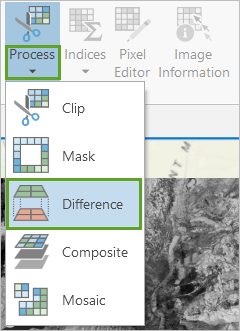
- On the ribbon, on the Imagery tab, in the Tools group, click the arrow under Process and choose Difference.
The difference raster, Difference_NBR_2014.tif_NBR_2015.tif, is added to the map.
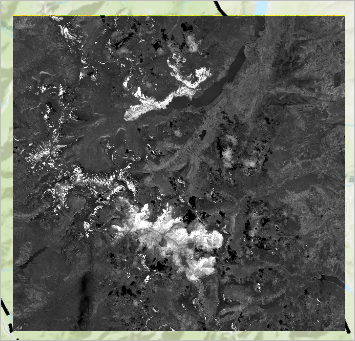
The fire locations now appear almost solid white, contrasting strongly against the gray and black areas around them. The only other white areas are the snowy mountainous areas, which are generally not conterminous with the fire areas. You can heighten the contrast by symbolizing the image. But first you'll change the name of the layer.
- In the Contents pane, click Difference_NBR_2014.tif_NBR_2015.tif to select it, and click the name again to rename it. Type change_nbr and press Enter.
- Click the color ramp under change_nbr to open the Symbology pane.
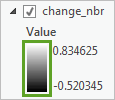
The layer symbology for change_nbr is determined by a color ramp instead of an RGB composite because, like the other NBR layers, it contains only one band.
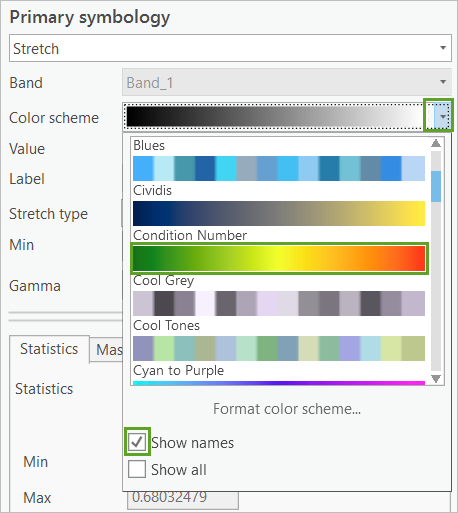
- In the Symbology pane, for Color scheme, expand the drop-down list, and check Show names. Then choose the green-to-red color ramp named Condition Number.
Tip:
To see the name of a color scheme, either point to the scheme or check the Show names box at the bottom of the Color scheme menu.
- For Stretch type, choose Standard Deviation.

The symbology updates.
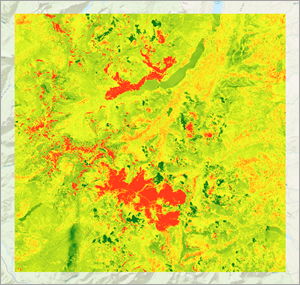
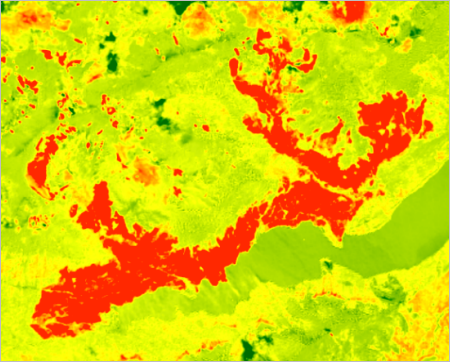
Both fires are now clearly demarcated on the map in bright red.
- Close the Symbology pane.
You no longer need the original NBR layers, so you'll remove them.
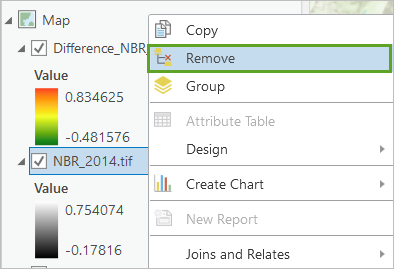
- In the Contents pane, right-click the NBR_2014.tif layer and choose Remove.
- Remove the NBR_2015.tif layer.
- Save the project.
You now have a clear enough image of the fire extents to digitize them as polygon features to share with your colleagues from the Montana Forest Management Services. .
Digitize the fire area
In this section you'll first create a feature class in which to store the new polygons. You'll then use editing tools to draw the polygon features, following the approximate boundaries of both fires. Finally, you will compute the area in acres for each burn scar.
Create a feature class
You'll start by creating a feature class, then use editing tools to trace the burn scar outline.
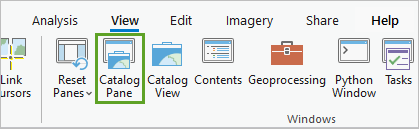
- On the ribbon, click the View tab and in the Windows group, choose Catalog Pane.
- In the Catalog pane, open the Databases folder.
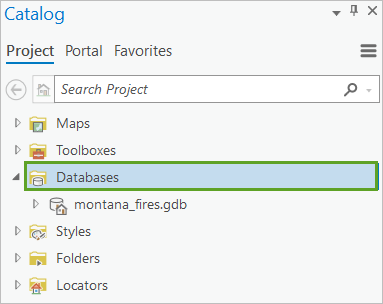
The folder contains montana_fires.gdb, the default geodatabase for the project, where you'll create the new feature class.
- Right-click montana_fires.gdb, point to New, and choose Feature Class.
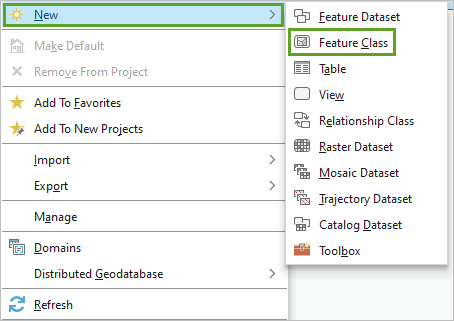
The Geoprocessing pane appears, displaying the Create Feature Class tool.
- In the Create Feature Class pane, for Name, type Fires. Leave the other parameters unchanged and click Finish.
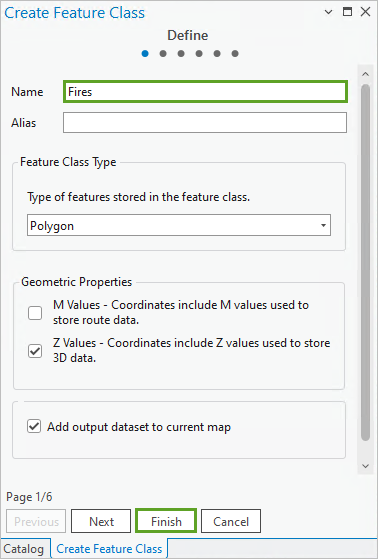
The new feature class is created and the new empty Fire feature class is added to your map and Contents pane. Because the new feature class's default symbology has a solid fill, it will be challenging to accurately trace the map feature. Next, you'll update the symbology.
- In the Contents pane, click the symbol for Fires to open the Symbology pane.
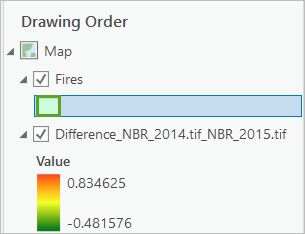
Note:
The symbology color of the layer is randomly generated and may differ from the example image, but it does not impact the results of the analysis.
The Symbology pane appears. Because the new feature class's default symbology has a solid fill, it can be difficult to properly draw all around the map feature you're tracing.
- In the Symbology pane, on the Gallery tab, choose the second option, Black Outline (2pts).
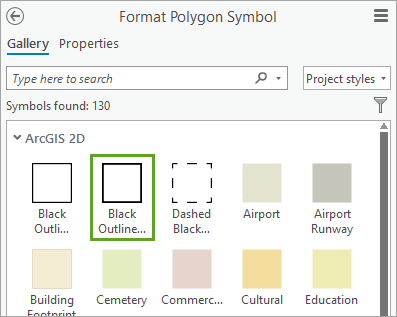
Note:
You point to the symbol options to see their full names.
Your feature class layer is configured and ready for editing.
Draw boundary polygons
Next, you will use editing tools to trace the edges of the Reynolds and Thompson Fires, digitizing the burn scar.
- Zoom to the Reynolds Creek Fire (the northernmost fire).
- On the ribbon, click the Edit tab. In the Features group, click Create.
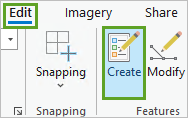
The Create Features pane appears. It contains the layers for which you can create features.
- In the Create Features pane, click Fires and click the Polygon button.
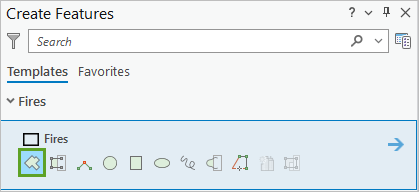
The pointer changes to crosshairs when you move it over the map.
- Click anywhere on the edge of the Reynolds Creek Fire area to begin drawing a polygon feature.
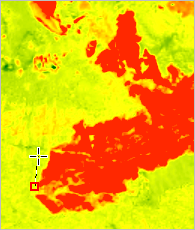
- Start clicking several other points along the burn scar boundary.
Each time you click, another vertex is placed.

Tip:
If you are unhappy with the placement of a vertex, press Ctrl+Z to remove it.
You might notice a dashed straight line that closes the polygon you are currently creating. Just ignore it, as you keep making progress around the burn scar.
To navigate the map while adding vertices, press the Up, Down, Left, and Right keys to pan, and use the mouse wheel to zoom in and out.
- Add vertices all along the edge of the fire area.
Note:
The more vertices you add, the more accurate your feature will be. Since you're only doing an exercise, don't worry about creating a perfect feature, just one that's reasonably accurate.
- When you've finished placing vertices, double-click the final vertex to finish creating the feature.
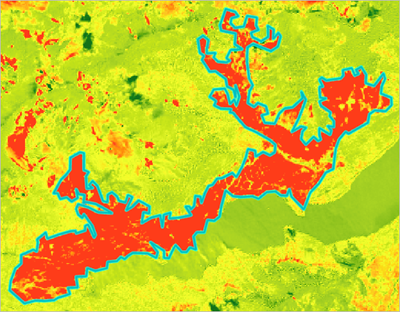
Note:
If you realize you made a few mistakes along the way, you can still complete your polygon and save it, as you will be able to correct the small errors later.
- On the Edit tab, in the Manage Edits group, click Save.
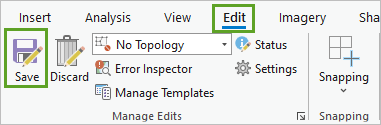
- In the Save Edits window, click Yes to save all edits.
Note:
If you want to correct the position of a vertex after saving your polygon, on the Edit tab, in the Tools group, click Edit Vertices.

On the map, click the vertex and drag it to a new position. On the floating toolbar, you can also click the Add and Delete buttons to add or remove some vertices.

When you are done, on the floating toolbar, click the Finish button, and on the Edit tab, click Save.
Alternatively, select the polygon, on the Edit tab, in the Features group, click Delete to delete the entire feature, and start over.
Next, you'll now digitize the Thompson Fire area.
- Press the Esc key to return to the map navigation mode.
- Zoom out and zoom back in to the Thompson Fire.
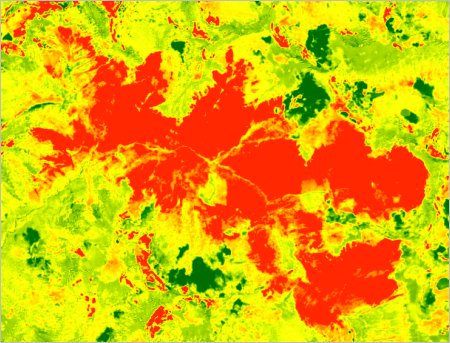
The Thompson Fire is larger than the Reynolds Creek Fire, so it will take longer to digitize.
- If necessary, on the Edit tab, click Create to open the Create Features pane.
- In the Create Features pane, under Fires, click the Polygon button.
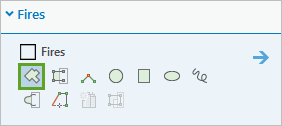
- Digitize the Thompson Fire.
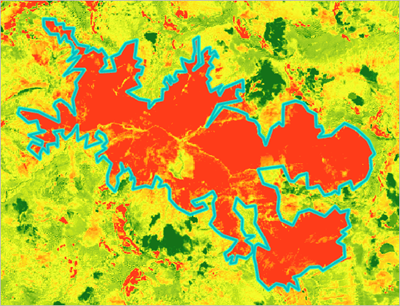
- When you're satisfied with your feature, save the edits.
- Close the Create Features and Symbology panes. In the Contents pane, right-click the change_nbr layer and choose Zoom To Layer to return to the full extent of the imagery.
Note:
Digitizing features manually, as you just did, works well when you have a small number of features. When analyzing larger areas, you might want to explore more automated vectorization methods, such as the Raster to Polygon tool.
Add attribute information
You've created features for both fires, but they currently have no attribute information. You'll edit the attribute table to identify each fire and calculate each fire's acreage.
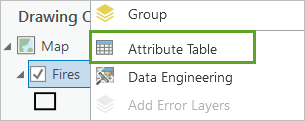
- In the Contents pane, right-click the Fires layer and choose Attribute Table.
The attribute table has two features, in the order they were digitized. The last feature you created, the Thompson Fire, might still be selected.
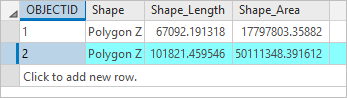
- On the attribute table ribbon, click the Clear Selection button.

The perimeter and area of the fires have already been calculated, in the Shape_Length and Shape_Area attributes, but these calculations are in square meters. A more standard measurement for area would be acres. You'll create a new attribute and populate it with that information.
- On the attribute table ribbon, click the Add Field button.

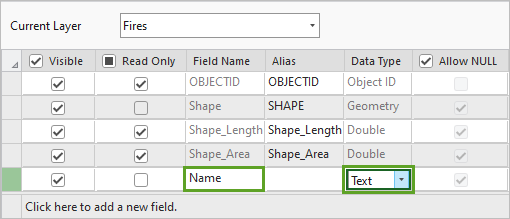
The Fields view opens, with an empty field at the bottom. You'll add two fields: one for the fire name and one for the fire acreage.
- For the new field, change the Field Name to Name. Double-click the Data Type cell and choose Text.
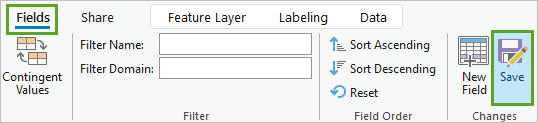
- On the ribbon, in the Fields tab, in the Manage Edits group, click Save.
Note:
If you have unsaved edits from when you digitized the fire features, you won't be able to save changes to the attribute table. If you can't save, close the attribute table without saving, save your feature edits on the Edit tab, and add the new field again.
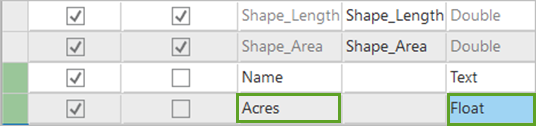
- Click the bottom of the list of fields to add another field.
- Change the name of the new field to Acres and the Data Type to Float.
- On the ribbon, click Save.
- Close the Fields view to return to the attribute table.

The fields are currently empty. You'll edit the Name fields directly, but to calculate acreage, you'll run a geoprocessing tool.
- Double-click the Name field for the first feature to edit it. Type Reynolds Creek and press Enter.
- Change the name of the second feature to Thompson.

- On the ribbon, click the Edit tab. In the Manage Edits group, click Save. In the confirmation window, choose Yes to save all edits.
- Right-click the Acres field heading and choose Calculate Field.
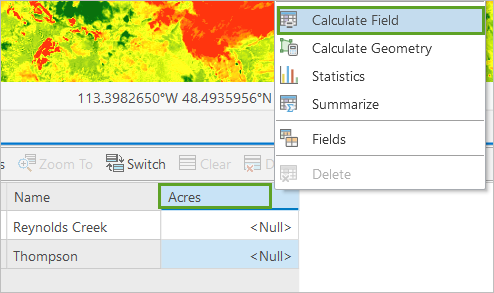
The Calculate Field tool opens. This tool allows you to create an expression to determine field values. The Fires feature class already has an area field, but it's in square meters, not acres. One acre equals 4,046.86 square meters, so you'll use this conversion rate to calculate acreage.
- Under Expression, in the Fields column, double-click Shape_Area to add it to the expression box. Click the division operator and type 4046.86 after it.
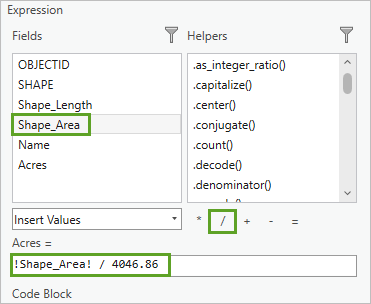
- Click OK.

The Acres field is calculated. The Reynolds Creek Fire is approximately 4,400 acres, and the Thompson Fire is approximately 12,400 acres. Your values will vary because you digitized your features differently.
- Close the Fires attribute table.
- Save the project.
You now have polygon features for both fires with attribute information on their names and acreage.
Share your results
In this section you'll do is publish the Fires feature class to ArcGIS Online as a hosted feature layer that others can access.
Share your results
You will share the Fires feature class to ArcGIS Online using the Share As Web Layer tool.
- In the Contents pane, right-click the Fires layer, point to Sharing, and choose Share As Web Layer.
The Share As Web Layer pane appears. Before you can share a layer, you must input metadata so it can be searched for and catalogued.
- In the Share Web Layer pane, enter the following:
- For Name, replace the existing text with Glacier_National_Park_Fires. Add your name or initials to the end of the name to make it unique.
- For Summary, copy and paste the text Perimeter definition of the Reynolds Creek and Thompson fires in Glacier National Park during the summer of August 2015. Perimeters defined by difference in Normalized Burn Ratio.
- For Tags, type Fire, Reynolds Creek, Thompson, Glacier National Park, Montana and press Enter.
- For Sharing With, choose to share with either Everyone or your organization, depending on who you want to see your web layer.
- Click Analyze.
The layer is analyzed for errors. If metadata is missing or there is something wrong with the data, the error will be catalogued and described so you can fix it.
Errors may appear stating that the field Shape_Length cannot be used as a display field or Allow assignment of unique numeric IDs for sharing web layers is disabled in Map Properties.
You will update the Layer Properties and Map Properties settings to resolve these errors.
- In the Contents pane, double-click the Fires layer and in the Layer Properties window, on the side panel, click Display.
- For Display field, choose Name.

- Click OK.
Next, you will resolve the error regarding unique IDs not being assigned.
- In the Contents pane, double click the Map.
- In the Map Properties window, in the General settings, check the box next to Allow assignment of unique numeric IDs for sharing web layers.

- Click OK.
- In the Share As Web Layer pane, click Analyze.
The errors have resolved and there are no further errors in the analyzer results.
- Click Publish.
The layer is published to ArcGIS Online.
- Click Manage the web layer to view the published layer in ArcGIS Online.
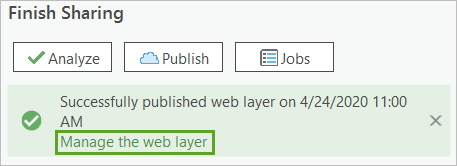
The item page for your Glacier_National_Park_Fires feature layer appears in a browser window.
- Sign in, if prompted, and click Open in Map Viewer.
The layer you shared that contains the digitized fire boundaries appears in the map.
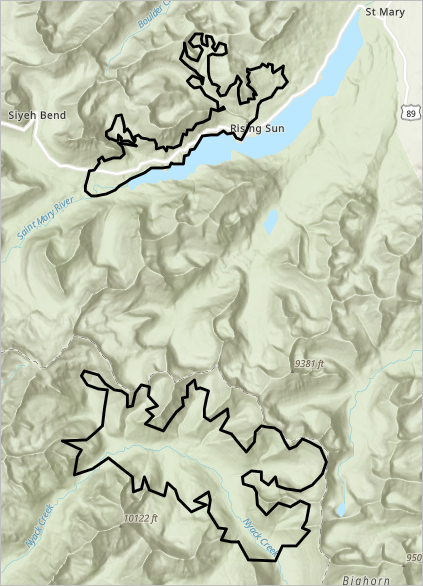
The layer can now be added to any number of new maps, and its symbolization can be customized.
In this tutorial, you used Landsat imagery to determine the extent of two fires. You first looked at the imagery through various spectral band combinations to visually assess the fire location. Then, you calculated the Normalized Burn Ratio to specifically highlight burned areas. Lastly, you digitized both fires and shared them to ArcGIS Online. In a real-world scenario, the Montana Department of Forestry and Resource Management could then use your layer for vegetation succession studies or to plan for future fires in the area.
You can find more tutorials such as this on the Introduction to Imagery & Remote Sensing page.
